A vendor ships a 40 MB export. An API returns 200,000 log records. A finance team wants the numbers in a spreadsheet by Friday. In each case the data arrives as JSON and has to leave as CSV.
Converting JSON to CSV looks like a one-liner until it isn't. Nested objects have no column to live in. Cyrillic and emoji turn into mojibake the moment Excel opens a file without a byte order mark. One record with an extra key crashes a naive Python script on row 900,000.
This guide covers three routes — spreadsheet import, a Python script, and a browser tool — with the failure modes of each. Every code block below was executed against the sample data shown.
What is JSON and Why Convert to CSV
JSON is a hierarchy: a record holds scalars, but it also holds nested objects and arrays, and nothing fixes the depth in advance. CSV is a rectangle: every row has the same number of columns, and each column holds one kind of value.
You convert when the consumer can only read tabular data:
- A finance report needs one row per invoice, with currency and total as columns.
- A legacy CRM accepts a CSV upload and nothing else.
- An analyst wants to pivot and chart the data in Excel, which has no concept of a nested field.
You should not convert when the hierarchy is the payload. A JSON Schema document, a comment tree, a configuration file with nested defaults — flattening these discards structure the consumer needs, and the table usually gets read straight back into JSON.
The practical rule: convert when the consumer is a spreadsheet, a database loader, or a CSV-only import endpoint. Keep JSON when the consumer is another program that expects a tree.
Two properties decide the entire approach: how deep the nesting goes, and whether every record shares the same keys. A flat array of uniform objects converts in one line. Anything else needs a mapping step you write yourself.
Three Ways to Convert
Method 1: Excel and Google Sheets
Excel imports JSON through Power Query: Data → Get Data → From File → From JSON. Power Query reads the file, presents the top-level array as a list, and offers a column-expander control that turns nested record fields into addressable columns.
The workflow:
- Save the API response as a
.jsonfile. - Data → Get Data → From File → From JSON, then select the file.
- In the Power Query editor, select the list of records and choose Convert To Table.
- Use the expand icon in the column header to pull nested fields into columns, once per level.
- Home → Close & Load to write the result into a sheet.
Google Sheets has no native JSON import — File → Import accepts CSV, XLSX and TSV and rejects a .json file. Getting JSON into Sheets means converting it first or writing an Apps Script function.
What goes wrong on this route:
- Nested structures need manual expansion one level at a time; a three-level document means three passes and a rebuilt column set each time.
- Excel stops at 1,048,576 rows and 16,384 columns, and a single cell is capped at 32,767 characters — a serialized nested object reaches that ceiling.
- Encoding: Excel on Windows decodes a BOM-less UTF-8 CSV with the system ANSI code page, so non-Latin text and emoji are already corrupted on open.
- A 100 MB JSON file takes minutes to load and can exhaust memory.
The Power Query menu path differs across Excel builds: recent Mac versions expose it under Data → Get Data (Power Query) → From File → From JSON, while older Mac builds have no Power Query at all. Confirm the exact path against your Excel version before documenting it for a team.
Method 2: Python
The standard library covers flat data. This script reads a JSON array and writes one CSV row per record:
import json, csv

with open('input.json') as f:
    data = json.load(f)

with open('output.csv', 'w', newline='') as f:
    writer = csv.DictWriter(f, fieldnames=data[0].keys())
    writer.writeheader()
    writer.writerows(data)
json.load builds a list of dicts; DictWriter maps keys onto columns in the order given by fieldnames, writeheader emits the header row, and writerows writes every record. newline='' stops the csv module inserting a blank line between rows on Windows.
Run against [{"id": 1, "name": "Alice", "email": "alice@example.com"}, {"id": 2, "name": "Bob", "email": null}], the output is:
id,name,email
1,Alice,alice@example.com
2,Bob,
Two limits appear as soon as the input stops being uniform. Nested values are written with Python's repr rather than JSON:
id,user,tags
1,"{'name': 'Alice', 'address': {'city': 'Berlin'}}","['a', 'b']"
2,"{'name': 'Bob', 'address': {'city': 'Paris'}}",[]
Note the single quotes. The cell holds a Python dict, and json.loads will not read it back. The second limit is harder: when records carry different keys, the script raises ValueError: dict contains fields not in fieldnames: 'email', because fieldnames was taken from the first record alone.
Both are fixed by flattening first and collecting the union of all keys:
import json, csv

def flatten(obj, prefix=''):
    out = {}
    for key, value in obj.items():
        name = f"{prefix}{key}"
        if isinstance(value, dict):
            out.update(flatten(value, f"{name}_"))
        elif isinstance(value, list):
            out[name] = json.dumps(value, ensure_ascii=False)
        else:
            out[name] = value
    return out

with open('input.json') as f:
    data = json.load(f)

rows = [flatten(r) for r in data]
fields = []
for row in rows:
    for key in row:
        if key not in fields:
            fields.append(key)

with open('output.csv', 'w', newline='', encoding='utf-8-sig') as f:
    writer = csv.DictWriter(f, fieldnames=fields, extrasaction='ignore')
    writer.writeheader()
    writer.writerows(rows)
flatten recurses into objects and joins names with _, and serializes arrays as JSON text so a cell stays readable. The union loop keeps every key seen in any record, while extrasaction='ignore' covers the reverse case of a key missing from the header. encoding='utf-8-sig' writes the BOM that Excel needs.
Output for the nested sample:
id,user_name,user_address_city,tags
1,Alice,Berlin,"[""a"", ""b""]"
2,Bob,Paris,[]
If pandas is already in your stack, pandas.json_normalize(data) performs the same flattening, with sep='_' for the joined names and record_path for arrays you want as separate rows. Treat it as a pointer to the right function rather than as verified output.
Method 3: Browser Tools
Browser converters exist for the case where you do not want to write a script: paste JSON, pick a format, download the file.
- csvjson.com handles JSON to CSV and back, plus TSV and semicolon separators, quoted fields and Unicode.
- convertcsv.com converts CSV, JSON, XML, SQL and Excel.
- jsonformatter.org formats, validates and converts JSON.
The interface cannot always tell you whether a converter ships your payload to a server. Read the privacy policy, or open the network tab in devtools on a test run. Financial records, customer lists and API logs containing tokens are not data you hand to an unknown server to find out.
A workflow that keeps the file loadable:
- Paste the JSON array.
- Let the tool detect the schema and list the fields it found.
- Select only the columns you need — dropping nested blobs before export is the cheapest way to keep the output small.
- Export, then open the result and confirm the encoding survived.
LocalJSON runs this whole sequence in the page: the array is parsed in the browser, nested values are serialized into a single cell instead of being silently dropped, and the exported file is written with a UTF-8 BOM.
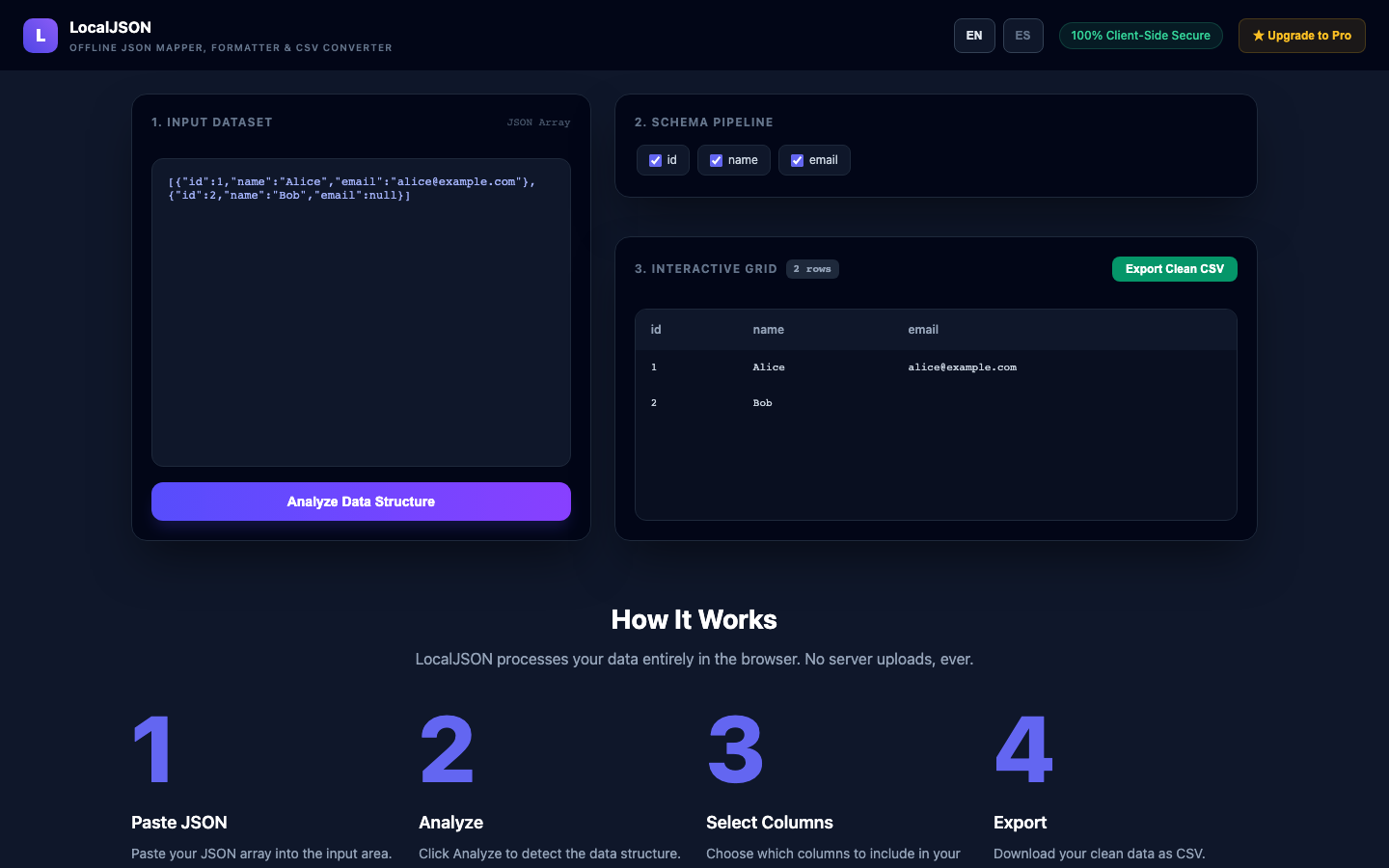
The screenshot above shows the input area on the left, the detected schema with its column checkboxes, and the export control on the right.
Common Problems
Nested JSON does not become a flat table on its own. Every tool above leaves a nested object as one cell of text. Flatten before export, or accept a column you cannot sort or pivot.
Unicode breaks without a BOM. Excel on Windows reads a BOM-less UTF-8 CSV with the local code page, so «Москва» arrives as mojibake and emoji disappear. Write with encoding='utf-8-sig', or pick an exporter that prepends the BOM.
Large files. A 100 MB JSON array becomes 1–2 GB of objects once parsed. Excel caps at 1,048,576 rows, and a browser tab parsing that much text will stall. Stream the conversion, or filter with jq before you start.
Nulls and empty arrays. Conventions differ: null becomes an empty cell in most CSV writers, the literal text null in others. [] may survive as [] or vanish entirely. Pick a convention and apply it in one place.
String versus number. "123" and 123 look identical in a spreadsheet but mean different things to a loader. Quoted numerics keep their leading zeros; unquoted ones get right-aligned and reformatted by Excel.
Best Practices
- Write the BOM.
encoding='utf-8-sig'costs nothing and removes a whole class of Excel bug reports. - Flatten before exporting, and fix the separator once (
_) so column names stay stable across runs. - Collect the union of keys from every record, not from the first one.
- Test the edges: a record with extra keys, a missing key,
null, an empty array, an object nested three levels deep, and a string containing a quote, a comma and a newline. - Version the output. A timestamped name such as
orders_2026-10-16.csvmakes it obvious which export a report came from. - Keep the source JSON. The CSV is a projection: regenerating it is one command, reversing the conversion is not.
Try LocalJSON
LocalJSON converts a JSON array to CSV in the browser. Paste the array, run the analysis, and the tool lists the fields it found; tick the columns you want and export. The output is quoted per RFC 4180, nested values are serialized as JSON into one cell, and the file is written with a UTF-8 BOM so Excel opens Cyrillic and emoji correctly.
The page is client-side, so the data never leaves the tab.
Pro is a one-time $5 lifetime license and adds unlimited record processing and a standalone offline HTML version.
Conclusion
Three routes, three cases. Spreadsheet import when the file is small, the nesting is shallow, and the person doing the work lives in Excel. A Python script when the conversion recurs, the nesting needs flattening, and the output feeds a pipeline — the standard library covers it and a dozen lines handle the edge cases. A browser tool when you need the CSV now and the data must not leave the machine.
Whichever you choose, the same three details decide whether the file opens correctly: the BOM, the flattening rule, and the union of keys. Get those right and JSON to CSV stops being a support ticket.